Your Android phone can be two phones in one handset. Personal apps live in the personal profile. Work apps live in a work profile with a briefcase badge. IT may have pushed that second space with MDM. You did not invent it. They did.
A consumer VPN and a work VPN are also two products. KloxVPN is the consumer one: WireGuard, OpenVPN, OpenConnect, and Shadowsocks, five devices, yearly from $2.83 a month, 7-day money-back on first purchase. It belongs in the personal profile if you are allowed to run a personal tunnel. The work VPN is the employer's. I will not tell you how to hide Klox from a work profile, strip a management agent, or route work apps around a policy. If the profile forbids a personal VPN, keep Klox off that space.
This is not the How to Set Up a VPN on Android: Step-by-Step Guide. That page is Play Store, sign in, first Allow. This is not Android Always-On VPN: When to Use It. That one is the consumer lock and the hotel portal. This is not Consumer VPN on a Work Laptop: BYOD, MDM, and Two Tunnels. Different chassis. This is not VPN on Android: Privacy and Permissions. Permissions are a different essay.
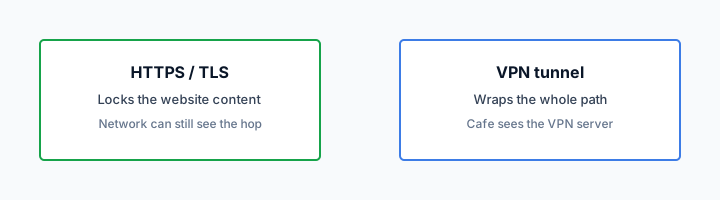
A VPN wraps a path. Wikipedia's VPN page is the noun. RFC 8446 is TLS 1.3 on websites. HTTPS already locked a lot of page bodies. The leftover is who sees the hop, and which profile owns that hop. Android can run a different VPN per user or work profile. That is isolation, not a license to stack tunnels until IT notices.
Download is the apps. Pricing is the live number. Cookies: /cookie. This is not legal advice. Read the AUP your employer published.
I have a bias. Install Klox in the personal profile. Leave work apps on the work VPN. Confirm Always-on in the profile you meant. One phone: check the portal list instead of inventing two seats.
Related reading: What is a VPN? and Android VPN setup. iOS VPN setup.
Looking for a reliable VPN?
KloxVPN — from $2.83/month. Apps for every device.
Two profiles, one handset
A work profile is a second Android user space on the same device. Work apps get a badge. Work files stay in that space. Personal photos stay in yours. The OS treats them as neighbors, not as one bag you can mix when it is convenient.
IT uses a device policy controller to create and police that space. They can require a work VPN, set Always-on for work traffic, or block unknown VPN apps inside the work profile. They can leave personal space alone, or lock the whole phone if it is company-owned. Search Settings for work profile and VPN. If you cannot find the work VPN row, ask IT for the client name. Do not guess from a farm screenshot.
Personal traffic and work traffic are not automatically the same hop. A VPN you start in the personal profile is for that profile. A VPN IT starts in the work profile is for work apps. Google's VpnService docs say each user or work profile can run a different VPN app, and only one active service per profile. That sentence is why this article exists. It is also why stacking two consumer apps in one profile still fails. One service per profile. Pick it.
Klox is not the work client. It will not open the intranet. It will not satisfy a DPC that named another package. If you install Klox because a listicle said always-on for remote work, you bought a consumer hop. The briefcase apps still answer to IT. A farm ranking is not your AUP.
I will not walk cloning the work profile, dual-app tricks, or a launcher that hides the badge. This page stops at: know which space you are in before you tap Connect.

- 1Download the app from klox.app/download — not a random APK site.
- 2Sign in with the account you paid for.
- 3Press WireGuard. Wait for the connected state.
- 4If it fails, try OpenVPN. Still failing: note the network (hotel, campus, home) before you write support.
First successful connect
| Space | Who owns the VPN | Install Klox? | Always-on |
|---|---|---|---|
| Personal profile, AUP allows personal VPN | You | Yes, from personal Play | Your toggle, in this profile |
| Personal profile, AUP forbids personal VPN | Policy says no | No. Use another personal device | Do not invent a lock |
| Work profile, IT issued a work VPN | Employer / DPC | No. Use their client | Theirs, if they set it |
| Work profile, no work VPN named | Still their space | Do not sideload into work | Ask IT, do not guess |
| Company-owned, fully managed | IT owns the device | Only if they allow a personal app | Whatever the DPC set |
Personal Klox stays in the personal profile. The work VPN is the employer's. Isolation is not a bypass.
— KloxVPN consumer notes
Cloudflare Learning: What is a VPN?
Wikipedia: Virtual private network
SafetyDetectives: best VPNs for Android (competitor specimen)
The badge is the tell
If the icon has a briefcase, you are in work space. Mail, chat, the work browser. Connect there only with the client IT named. If the icon is plain, you are in personal space. That is where Klox lives, when policy allows it.
What this post is not
Not a first-run Play Store walkthrough. Not the Always-on hotel essay. Not the BYOD laptop piece. Not a permissions catalog. Not a how-to for removing a work profile. If you wanted any of those, you are in the wrong URL.
Where to install Klox
Install from the personal Play Store, on the personal profile, while you are looking at personal icons. Sign in. Grant the system VPN dialog when Android asks. That dialog is the OS telling you an app will see personal-profile traffic. Approve it for Klox in that space, or the tunnel never exists.
Do not hunt the work Play Store for Klox. Work Play is a managed catalog. IT decides what appears there. If Klox is not in that catalog, that is the answer. I will not walk sideload, APK mirrors, or 'install in work' recipes. Those are how people try to put a consumer app where a DPC did not invite it. This article will not help you do that.
If the phone is fully managed and personal Play is gone, you do not have a personal profile in the sense this guide means. Ask IT whether a personal VPN is allowed. If they say no, the honest seat is a personal phone or a home PC. The work handset does not have to be one of five.
If personal Play is there and work Play is there, you will see two store icons, or one store that switches context. Stay in personal. Download Klox. Open it from a personal app drawer. If you open a copy that sits under a badge, you opened the wrong space. Close it. Do not 'just try Connect' to see what happens. Curiosity is how work chat starts routing through a consumer exit you did not mean to use, or how the DPC blocks the handshake and you file a ticket that WireGuard is broken.
The How to Set Up a VPN on Android: Step-by-Step Guide still owns first-run steps: account, protocol, first server. This page only cares which drawer you opened. WireGuard first once you are in the right profile. OpenVPN if that network is rude. DNS through the tunnel still describes a connected personal session. It does not describe work SharePoint. One consumer client in personal space. The work client stays in work space, named by IT.
Personal Play, personal drawer
If you cannot tell which Play Store you opened, look at the icon badge and the account listed at the top. Work account plus badge: wrong store. Your account, no badge: right store. When in doubt, do not install.
Fully managed is a different phone
No personal profile means no personal Klox on that handset. That is not a defect in the app. That is ownership. Use a device you actually own, if policy allows a personal tunnel at all.
Always-on is per profile
Always-on VPN on Android is not one house lock for the whole phone. It is policy on a profile. Personal Always-on keeps the personal VpnService up. Work Always-on, when a DPC sets it, keeps the work VPN up for work apps. Confirm which gear you opened before you flip a switch.
The Android Always-On VPN: When to Use It is the consumer version: when the lock helps, when Block connections without VPN kills a hotel splash, battery mood, five seats held overnight. Read it for the personal profile. Do not copy those toggles into the work VPN screen and call it a Klox setup. The work screen may not even show you a toggle. The DPC may have already set the package and lockdown. You are looking, not configuring.
If personal Always-on is on, personal apps prefer that tunnel after reboot. Cafe Wi-Fi still needs a real route first if there is a splash page. Fail-closed personal Always-on plus a captive portal is the same deadlock the Always-on article already covered. Pause or turn the personal lock down, finish the page, bring the lock back if you still want it. That dance is personal-profile traffic. It is not a reason to touch work Always-on.
If work Always-on is on, work apps may have no path until the work VPN handshakes. That can look like 'Slack is dead but Instagram works.' Good. That is isolation doing the job. Do not 'fix' Slack by forcing Klox to swallow the whole device. You cannot, cleanly, and you should not try. Tell IT the work tunnel is down. Use their runbook.
Block connections without VPN, in the personal gear, is a personal lock. It will not override a DPC lockdown on the work side. Two locks. Two owners. Screenshot the personal toggles at home. Screenshot the work VPN row so you do not disable something you do not own.
I want personal Always-on on a travel day if you know where the toggle lives. I want it off if you live on hotel portals. I want work Always-on left as IT left it.
Personal lock, work lock
Open VPN settings from the personal profile to edit Klox Always-on. If the row is grey, OEM skin or a device restriction. Do not assume the work DPC did it. Do not assume you can clear it. Ask.
Do not copy the hotel advice into work
Turning down personal Block connections so a cafe splash loads is a personal move. Turning down a work Always-on that IT set is a policy move. This article will not treat them as the same checkbox.
MDM is not a suggestion
MDM, EMM, a work profile owner: different acronyms, same idea. A controller on the phone can install apps, set VPN, restrict settings, wipe the work profile, and in some modes wipe the device. If that controller named a work VPN package, that package is the work hop. Klox is not a peer you vote in.
I will not list intents, ADB, safe mode, or 'remove work profile' steps. I will not tell you how to hide a personal VPN from an inventory agent. If you are reading this to dodge a control, stop. Use a personal device for personal tunnels, or do not run a personal tunnel. Those are the honest options.
What you will see, if MDM cares about VPN: a work VPN that starts itself, a settings row you cannot edit, a personal Connect that fails with a generic error, or a personal app that never appears in work Play. Treat those as policy, not as bugs. Switching Klox from WireGuard to OpenVPN will not lift a DPC block. Reinstalling will not. A farm 'best Android VPN' list will not.
BYOD often leaves personal space alone and cages work apps. Fully managed often cages the phone. A personal Play Store is a hint, not proof that a personal VPN is allowed. Believe the restriction, not the blog.
If personal Klox connects and work apps still use the work VPN, that is the shape this article wants. If work apps break, disconnect Klox. If work returns, keep Klox off that handset and use another seat. I will not invent a split-tunnel row that stitches Slack to a consumer exit. Support can help a personal handshake that fails on a normal network. Support cannot bless a bypass. Do not open a ticket that asks how to hide the app from Intune.
A block is an answer
If Connect fails only on the managed phone and works on a personal tablet, you already isolated the cause. Stop protocol-hopping. Move the seat.
Inventory is not a dare
Some agents list installed apps. Installing Klox in personal space may show up. If that violates the AUP, uninstall. A tunnel you have to hide is a tunnel you should not run on that device.
Read the AUP before you connect
Acceptable use, remote-access policy, mobile policy: pick the PDF your employer actually published. Some allow a personal VPN on a personal profile. Some forbid any unauthorized tunnel on a device that touches work mail. Some are silent, which is not the same as yes. Silence is a question for IT or legal, not a green light from a blog.
This is not legal advice. I am not your counsel. I will not interpret a paragraph you paste into a ticket. I will say: if the document forbids personal VPNs on devices with a work profile, keep Klox off that phone. The plan still has four other seats. Yearly from $2.83 a month is not an argument that policy does not apply.
Farms write 'best VPN for remote work' as if the buyer were a freelancer on a cafe laptop they own. You might be that person. You might also be an employee on a handset that can open the HR system. Those are different buyers. The Consumer VPN on a Work Laptop: BYOD, MDM, and Two Tunnels already said Klox is not ZTNA. Same noun split, smaller screen.
If the AUP allows personal VPN when you are off the clock, still keep it in the personal profile. Off the clock is not a reason to drag work icons through a consumer exit. Work files, work tokens, work chat: those stay on the work hop even at 21:00 if the apps are work apps. The clock does not move the badge.
No badge and no DPC: you are in the normal How to Set Up a VPN on Android: Step-by-Step Guide world. The moment a work profile appears, come back here.
I would rather you send one boring question to IT than run a tunnel for six months and discover the answer in a review. Boring questions are cheap.
Silent policy is not yes
If you cannot find a sentence about personal VPNs, ask. Do not treat a missing paragraph as consent. Do not treat a farm ranking as consent either.
Off the clock still has a badge
Work apps after dinner are still work apps. Personal Klox does not become a work VPN at night. Leave the briefcase on the work client.
Seats: one phone, check the portal
Klox is five simultaneous connections. Install can be more. Connect cannot. A phone is usually one seat if one Klox tunnel is up. I will not invent a second seat because you also have a work profile. The work VPN is not a Klox seat. It is IT's tunnel. It does not count against five.
Android allows a different VPN app per profile. That does not mean you should install Klox in work space. You should not. Open the portal and count connected rows. Believe the list, not a theory that two profiles are automatically two seats or automatically one. Rename the row if the default says Android and you also have a tablet named Android.
Ghost devices still steal seats. A tablet on the couch with auto-connect holds a session. A laptop lid can keep a peer. The work phone is not special here. If you hit the cap in a cafe, the usual culprit is furniture at home, not the briefcase badge. Disconnect what you are not holding. Remove retired handsets in the portal.
Smart Connect, if the app shows the row, means connect on untrusted Wi-Fi. Personal-profile habit. It can race a splash page. If the row is missing, use Connect. I will not invent a lock to match another vendor's screenshot.
Five is enough for a personal phone and a laptop. It is not a reason to put Klox under a work badge. It is not a family seating chart. Personal Klox on this handset is probably one row. Look. Then decide whether the cafe laptop is row two.
Work VPN is not a Klox row
IT's client does not appear in our portal. Do not subtract it from five. Do not add it either. Different product. Different list.
Believe the portal, not the theory
Two profiles, one physical phone. The connected-device list tells you whether we see one peer or two. If you see two Klox rows for one handset, you installed in both spaces. Uninstall the work copy. Keep the personal one if policy allows.
Cafe Wi-Fi on the personal side
You sit down. You join a shop SSID you do not run. Personal apps want a hop. Work apps may want their own hop, or they may sit quiet until the work VPN has a route. Treat those as two problems.
Personal: get a real route. If there is a splash page, complete it in the clear. Then connect Klox in the personal profile. WireGuard first. OpenVPN if UDP dies. That is the same cafe habit as everywhere else. HTTPS already locked the page body on most sites you care about. The cafe still sees destination IPs and often SNI unless the hop is a VPN. Personal Klox changes that map for personal traffic. It does not make the AP honest. It does not fix phishing.
Work: if the work VPN needs the same splash, the work client has to survive the garden too. I will not tell you to pause a DPC lockdown so Slack can load a portal. If work apps are bricked on cafe Wi-Fi, use cellular for work, or ask IT how they want portals handled. Some work VPNs exclude the captive-portal path. Some do not. Their runbook, not ours.
Do not turn off the work profile to 'make cafe Wi-Fi simpler.' That is a management action, and this article will not coach it. Do not move work chat into a personal browser so you can ride Klox. That is how work tokens land in the wrong space.
If personal Always-on plus Block connections is on, you may deadlock the splash. The Always-on article already wrote that sequence. Disconnect or pause the personal lock, finish the page, restore. Leave the work lock alone.
Phone plus laptop is two personal seats if both Klox tunnels are up. The work profile does not add a third. I connect personal Klox after the portal. I leave work apps on the work VPN. If work cannot reach that AP, I use cellular for the briefcase. I do not merge the spaces to save a radio.
Splash page is still a garden
Personal fail-closed will hide the login page. Lift the personal lock, not the work one. Confirm a boring site loads. Then Connect.
Cellular is a valid work path
If the shop AP and the work VPN hate each other, stop fighting the AP. Work on cellular. Personal browsing can stay on shop Wi-Fi plus Klox. Two radios, two jobs.
Keep Klox off work apps
Work apps should use the work VPN, or the path IT blessed. They should not ride a consumer exit you picked for privacy on a path you do not trust. Different buyer. Different logs. Different incident story.
Keep Klox off work apps by keeping Klox out of the work profile. Do not install it there. Do not copy the APK in. Do not enable a personal VPN and then open work Chrome hoping the OS will 'just share.' Isolation is the feature. If a vendor skin leaks, that is a bug for IT, not a recipe I will publish.
People want one tunnel for the status-bar glyph. Refuse it. AUP, DPC package name, intranet routes. A consumer no-logs claim is not your employer's retention policy. Work traffic may need to be logged. Personal traffic is why you bought Klox. Mixing them makes both stories worse.
If you have no work VPN and IT still wants work apps on a clean path, that is their gap. Klox will not become ZTNA.
Keep Klox off the whole phone when the AUP forbids it, MDM blocks it, or work breaks when personal VpnService starts. Keep it on the personal side when policy allows it and you want a hop the cafe does not read.
Seven-day money-back is for a first purchase if the apps are wrong for you. It is not a bypass lab. If the work phone cannot run it, use a personal device or see /refund. Renewals are not that window.
Download the personal app if this handset is allowed. Leave the briefcase alone.
One glyph is not a goal
Two VPN glyphs can be correct: work and personal. One glyph that swallowed both spaces is the fantasy. Live with two.
Seven days is not a bypass lab
The money-back window is so you can try WireGuard, OpenVPN, OpenConnect, and Shadowsocks on a device you are allowed to use. It is not a week of fighting MDM. If the phone is the wrong chassis, refund or move the seat.
Key Takeaways
Two profiles, one handset. Personal Klox stays in the personal profile. The work VPN stays the employer's. Always-on is per profile. MDM is a control, not a puzzle. The AUP beats a farm ranking. One phone is one Klox seat until the portal says otherwise. Cafe splash first, then the personal tunnel. Keep consumer exits off work apps.
WireGuard first. OpenVPN when the path is rude. Five devices. Yearly from $2.83 a month. Seven-day first-purchase money-back. Cookies for this site: /cookie. No city count. No streaming fairy tale. No instructions for stripping a work profile.
First-run taps: Android setup guide. Personal lock: Always-on. Laptop: BYOD. Permissions: the privacy essay. If you wanted a tunnel on the personal side, download the apps and leave the briefcase where IT put it.
Related Resources
Personal profile, personal tunnel
KloxVPN is WireGuard, OpenVPN, OpenConnect, and Shadowsocks, five devices, yearly from $2.83 a month, 7-day first-purchase money-back. Install in the personal profile when policy allows. Leave the work VPN to your employer.
Download KloxVPNFrequently Asked Questions
KloxVPN Team
Experts in VPN infrastructure, network security, and online privacy. The KloxVPN team has been building and operating VPN services since 2019, providing consumer and white-label VPN solutions to thousands of users worldwide.