Remote IT support — screen sharing, remote desktop, and control tools — sends sensitive data over the internet. The technician sees the client's screen; the client grants control of their system. On untrusted networks, that data can be intercepted. A VPN encrypts the path between technician and client, and hides both IP addresses from observers.
Both sides can use a VPN for full protection. The technician connects to a VPN before starting the session; the client does the same. All traffic between them then flows through encrypted tunnels. Even if someone intercepts packets on the network, they see only encrypted data.
Use a nearby server for low latency. Screen sharing and remote control are sensitive to delay. WireGuard and a server close to both parties minimize the impact. Connect before starting the session — if the support tool connects first, initial traffic may be exposed.
This guide covers why VPN helps with remote support, how to set it up, and when both sides should use it.
Remote support has become standard for IT help desks, MSPs, and freelancers. Tools like TeamViewer, AnyDesk, and ConnectWise Control make it easy to connect to a client's machine from anywhere. But that convenience creates risk: the session carries keystrokes, screen content, and sometimes file transfer data. On a home network, the risk may be low. On public WiFi, in a cafe, or on a shared office network, the session is exposed. A VPN adds a critical layer of protection that works regardless of which support tool you use.
Technicians who work from home or travel frequently connect from untrusted networks. Clients may be on home networks with other users, or on business networks where traffic is monitored. In both cases, encrypting the support session protects sensitive data from observation. The VPN does not replace the support tool's own security — it adds network-level protection that applies to any tool.
Related reading: VPN for Betting: Privacy and Access and VPN for Home Office: Secure Your Home Network. Why WireGuard Is Faster Than OpenVPN and How to Use a VPN on Public WiFi Safely. What is a VPN? and Download KloxVPN.
Looking for a reliable VPN?
KloxVPN — from $2.83/month. Apps for every device.
Why Use VPN for Remote Support
Remote support exposes screen and control data. A VPN protects it. The support tool establishes a connection between two machines; that connection carries everything visible on screen and every keystroke. Without encryption at the network layer, anyone on the path can observe it.

- 1Download the app from klox.app/download — not a random APK site.
- 2Sign in with the account you paid for.
- 3Press WireGuard. Wait for the connected state.
- 4If it fails, try OpenVPN. Still failing: note the network (hotel, campus, home) before you write support.
First successful connect
Encrypt the Path
Screen-sharing and remote control tools send data over the internet. On public or untrusted networks, that data can be intercepted. A VPN encrypts it so observers cannot read it. Packet sniffing on a shared network can capture screen updates, mouse movements, and keyboard input. Even if the support tool uses its own encryption, a VPN adds a second layer — and protects the path from your device to the VPN server. On public WiFi, that matters. The encryption happens before traffic leaves your device, so the WiFi operator and other users see only ciphertext.
Hide IPs
Both technician and client expose their IP addresses when connecting. A VPN masks both. That reduces the attack surface and protects against targeted observation. An attacker who knows a technician's IP could attempt to target that machine. A client's IP reveals their approximate location and can be used for profiling. When both sides use VPN, observers see only VPN server IPs. That makes it harder to correlate sessions with specific users or locations. For support sessions involving sensitive systems, IP hiding adds an extra layer of operational security.
Untrusted Networks
Technicians often work from home or travel. Clients may be on home or business networks. If either network is untrusted, encryption matters. A technician at a coffee shop, airport, or hotel is on a shared network. A client on a home network with roommates or family may have traffic visible to others. Business networks often log and inspect traffic. In any of these scenarios, VPN encryption protects the support session from local observation. The rule of thumb: if you would not want someone on the network to see the session, use a VPN.
Setup: Connect Before Starting
Establish the VPN connection before launching the support session. Order matters: VPN first, then the support tool. If the support tool connects first, the initial handshake and early traffic may go over the unencrypted path.
| Fact | KloxVPN | Not on this page |
|---|---|---|
| Protocols | WireGuard, OpenVPN, OpenConnect, and Shadowsocks | A third invented protocol |
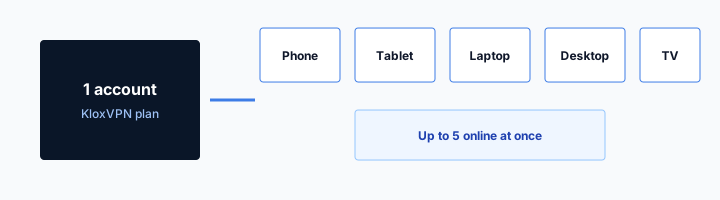
| Devices | Five simultaneous | Unlimited seats |
| Yearly | From $2.83/month | A fake city count |
| Refund | 7-day, first purchase | An On Demand toggle |
Technician
Connect to a VPN server before opening TeamViewer, AnyDesk, or your support tool. Use a server geographically close to the client for low latency. Open the VPN app, select a server in the same region as the client (or a midpoint if you are in different countries), and wait for the connection to establish. Then launch the support tool and initiate the session. The support tool will use the VPN tunnel automatically — no configuration needed. If you forget and start the session first, disconnect the support session, connect the VPN, and reconnect.
Client
The client can also connect to a VPN. For full path encryption, both sides use VPN. The support tool's traffic then flows through both tunnels. The client should connect their VPN before the technician initiates the session. If the client is less technical, the technician can guide them: "Open your VPN app, connect to any server, then tell me when you see the green checkmark." Both sides using VPN gives the strongest protection. If the client cannot or will not use a VPN, the technician using VPN still protects the technician's side.
Same Provider
Technician and client do not need the same VPN provider. Each encrypts their own traffic. The path is protected. The technician might use KloxVPN; the client might use a different provider or a free trial. Compatibility is not an issue — VPN works at the network layer, and support tools work on top. The only consideration is that both connections add latency. Using nearby servers on both sides keeps the total impact minimal.
Performance: Latency and Throughput
Screen sharing needs low latency. A VPN adds a hop — your traffic goes to the VPN server first, then to the destination. Each hop adds milliseconds. For typing and mouse movement, a few extra milliseconds are usually fine. For video-like screen updates, latency can feel sluggish if the server is far away.
vpn remote support secure stays on the box. The hop wrap stays in the app.
— KloxVPN operator notes
Choose a Nearby Server
Select a VPN server close to both parties. The extra hop adds latency; a nearby server keeps it minimal. WireGuard adds less overhead than OpenVPN. If the technician is in New York and the client is in Boston, a server in the Northeast (New York, New Jersey, or Boston) minimizes round-trip time. If they are in different countries, pick a server in the client's country or a midpoint. Many VPN apps show latency per server — choose the lowest. Avoid servers on other continents for support work; the added 100–200ms will be noticeable.
Impact
With WireGuard and a nearby server, the impact is usually small — often under 10%. For most support sessions, it is acceptable. If latency is critical, use the closest server. Screen sharing typically uses 1–5 Mbps depending on resolution and update rate. VPN overhead is usually 5–15% of throughput. The bigger factor is latency: a server 50ms away adds ~50ms round-trip. For general support (browsing, config changes, file edits), that is fine. For real-time video or gaming support, every millisecond counts — use the closest possible server.
Do Both Sides Need a VPN?
For full protection, both can use it. For IP hiding, one side helps. The ideal is both; the minimum for meaningful protection is at least the technician, who often connects from less trusted networks.
Full Path Encryption
If both technician and client use VPN, traffic is encrypted from end to end. Each side's VPN encrypts their leg of the path. The technician's traffic is encrypted from their device to their VPN server; the client's traffic is encrypted from their device to their VPN server. The segment between the two VPN servers may be unencrypted by the support tool — but that segment is typically over the public internet between two VPN providers' infrastructure, which is harder for a casual observer to intercept. For maximum protection, both sides use VPN.
One Side
If only one side uses VPN, that side's traffic is encrypted to the VPN server. The rest of the path may be unencrypted. For IP hiding, one side still helps — the non-VPN side's IP is exposed, but the VPN side's is not. In practice, the technician is more likely to be on an untrusted network (travel, cafe, home with shared WiFi). The client may be on a home or office network they trust. If only one side uses VPN, the technician should be that side. The technician's IP and traffic are then protected from their local network.
Remote Support Tools and VPN Compatibility
Most remote support tools work over VPN. A few considerations apply. VPN operates at the network layer; support tools run as applications on top. In most cases, they work together without configuration.
TeamViewer, AnyDesk, and Similar
These tools establish direct or relayed connections. VPN works at the network layer, so the support tool's traffic flows through the VPN tunnel. Connect VPN first, then start the session. No special configuration needed. TeamViewer, AnyDesk, ConnectWise Control, Splashtop, and similar tools all work over VPN. The support tool does not know or care that VPN is in use — it just sees a network connection. If you use a relay server (when direct connection fails), the traffic still goes through your VPN to reach the relay. The only caveat: some tools may detect "suspicious" network changes and flag the session. That is rare and usually does not block the connection.
Browser-Based Support
Some support tools run in the browser. VPN encrypts browser traffic. Ensure the VPN is connected before loading the support page. Test with a short session to confirm responsiveness. Browser-based tools (e.g., Chrome Remote Desktop via web, or vendor-specific web portals) work the same way — the browser sends traffic through the VPN. The main consideration is that browser-based tools sometimes use WebRTC, which can leak your real IP if not configured correctly. Use a VPN with WebRTC leak protection, or disable WebRTC in the browser for the support session. Most VPN apps handle this.
Corporate VPN Conflicts
If the technician or client uses a corporate VPN for work, running a personal VPN simultaneously can conflict. Use split tunneling if available — route only the support tool through the personal VPN, or use the corporate VPN if it allows the support tool. Check your organization's policy. Some corporate VPNs block split tunneling and require all traffic to go through the corporate tunnel. In that case, the corporate VPN may already encrypt the support session — check whether it allows remote support tools. If the corporate VPN blocks the support tool, you may need to disconnect it for the session and use only the personal VPN. That can violate policy — confirm with IT first.
Security Best Practices for Remote Support
VPN is one layer. Combine it with other security habits. Defense in depth means multiple layers — VPN protects the network path; verification, access control, and tool choice protect the session itself.
Verify Identity
Before granting remote access, verify the technician's identity through a separate channel (phone, known email). VPN protects the path; it does not prevent social engineering. Scammers impersonate IT support and request remote access. The client should confirm the technician's identity via a known phone number or email before sharing a session code. If the client initiated the support request, they likely know who to expect. If the technician cold-called, be extra cautious. Never grant access based solely on a phone call from an unknown number.
Use Support Tools with End-to-End Encryption
Many modern tools encrypt their own traffic. VPN adds a second layer and hides IPs. Prefer tools that support strong encryption and require explicit user consent for control. Tools like AnyDesk and TeamViewer use encryption for the session. VPN adds network-level encryption on top. The combination is stronger than either alone. Choose tools that require the client to approve each control action (e.g., "Allow technician to control mouse?") rather than granting full control immediately. That limits damage if the session is compromised.
Limit Session Scope
Grant only the access needed. Some tools allow view-only vs full control. Use the minimum required. End the session when done. VPN protects during the session; limiting scope reduces exposure. If the technician only needs to see the screen to guide the client, use view-only. If they need to run commands, grant control only for the duration of that task. When the session ends, ensure the tool disconnects and does not allow reconnection without a new code. Some tools have "quick reconnect" features — disable them for sensitive sessions.
Audit and Logging
Some support tools log sessions. Ensure logs are stored securely. VPN does not affect logging — the tool still records what happened. Choose tools with clear audit trails and retention policies. Logs may include session duration, IP addresses (which will be VPN IPs if VPN is used), and sometimes screen captures. For compliance (HIPAA, GDPR, etc.), ensure the tool's logging meets your requirements. Some organizations require that support sessions be logged and retained for a specified period. VPN does not interfere with that — it only protects the network path.
Troubleshooting VPN and Remote Support
Occasionally VPN and support tools interact in unexpected ways. Most issues are resolved with simple steps.
Connection Timeouts
If the support tool fails to connect with VPN on, try a different VPN server. Some servers may be rate-limited or blocked by the support tool's relay servers. Switching to a server in a different city or country often resolves this. If the issue persists, try a different protocol — WireGuard first, then OpenVPN. Some networks block VPN traffic; if you are on a restrictive network, the support tool may work without VPN while VPN fails. In that case, use mobile data with VPN as a fallback.
High Latency or Lag
If the session feels sluggish, the VPN server may be too far away. Switch to a closer server. Use the VPN app's latency display to pick the lowest-latency option. If both technician and client use VPN, consider having the client disconnect their VPN — the technician's VPN is usually sufficient for protection, and the client may be on a trusted network. Reducing one side's VPN hop can cut latency noticeably.
Split Tunneling for Corporate Users
Technicians on corporate VPN may need to route only the support tool through a personal VPN. Split tunneling allows this — the corporate VPN handles work traffic, the personal VPN handles the support tool. Not all VPN apps support split tunneling, and corporate policies may prohibit it. Check with IT. If split tunneling is not available, the technician may need to disconnect the corporate VPN for the support session and use only the personal VPN. That may violate policy — get approval first.
When to Skip VPN for Remote Support
In a few scenarios, VPN may add more friction than benefit. Know when to use it and when to skip.
Trusted Networks Only
If both technician and client are on trusted, private networks (e.g., home with no guests, office with no monitoring), the risk is lower. VPN still adds protection, but the urgency is less. For sensitive sessions (e.g., accessing financial data, medical records), use VPN anyway. For routine troubleshooting on a home network, it is a judgment call. When in doubt, use VPN.
Corporate VPN Already Active
If the technician is on a corporate VPN that encrypts all traffic, adding a personal VPN may conflict. The corporate VPN may already protect the path. Check whether the corporate VPN allows the support tool and whether it encrypts traffic to the support tool's servers. If yes, the personal VPN may be redundant. If the corporate VPN blocks the support tool, you will need to disconnect it for the session and use the personal VPN instead.
How a tunnel applies to VPN for Remote IT Support: Keep Sessions Secure
Join. Portal. Connect. That order is the VPN for Remote IT Support: Keep Sessions Secure ritual. Everything else is optional tinkering. Inner DNS through the tunnel is the setting you wanted. The LAN seeing a blob to a node is success. Phone hotspot versus VPN for Remote IT Support: Keep Sessions Secure AP: different radios, same rule. Untrusted hop, then wrap, then work. Portal first. Handshake second. Leak test third. That is the whole checklist.
Someone else owns the AP on VPN for Remote IT Support: Keep Sessions Secure networks. Guest SSIDs still NAT you. That is the whole physics lesson. If someone asks for a VPN for Remote IT Support: Keep Sessions Secure mode, send this slug. Same apps. same four protocols. Cookies: /cookie. That is this website. It is not the tunnel and not the portal. Send this slug when someone asks for a special VPN for Remote IT Support: Keep Sessions Secure profile. There is not one.
Airport, hotel, campus, VPN for Remote IT Support: Keep Sessions Secure: the label changes. The hop does not. Untrusted LAN, then wrap. Do not invent a city because the SSID mentioned a brand. Connect to a node. That is enough. [Captive portal]({portal}) is the garden. VPN is the truck after. Mix the order and you get a loop or a leak, not a new feature. If UDP dies on VPN for Remote IT Support: Keep Sessions Secure APs, one protocol swap. Then stop tinkering.
What success looks like
If the page loops, you probably raced the tunnel. Drop it. Finish the garden. Connect again. That is the VPN for Remote IT Support: Keep Sessions Secure recovery. Cookies at /cookie do not open the portal. The portal opens in a browser. Then the app. Do not paste sysctls into the app because a VPN for Remote IT Support: Keep Sessions Secure AP was rude. Protocol swap is the consumer move. Kernel knobs are a lab move. Treat VPN for Remote IT Support: Keep Sessions Secure like a hotel SSID even when the branding looks official.
The front desk can print a QR. The kettle can sit next to a portal. Neither object wraps a hop. VPN for Remote IT Support: Keep Sessions Secure Wi-Fi still needs Connect after sign-in. If both protocols fail, check whether you ever left the garden. WAN first. Then handshake. Then leak test. Klox is five devices, yearly from $2.83/mo on yearly, 7-day money-back on first purchase. There is no VPN for Remote IT Support: Keep Sessions Secure SKU and no city count on this page. No VPN for Remote IT Support: Keep Sessions Secure mode. Same apps. Same five devices. Same yearly $2.83/mo on yearly.
This slug is a habit page for VPN for Remote IT Support: Keep Sessions Secure networks, not a new SKU. Device limit stays five devices. Yearly stays $2.83/mo on yearly. When UDP dies, one OpenVPN attempt is the spare tire. A third client is how you create two default routes. WireGuard is fast when UDP lives. OpenVPN is the spare tire when a filter eats handshake packets. One swap. Then stop. You are done when Connect is up and the portal is in the past. Not when you renamed a sysctl.
Related product pages
On VPN for Remote IT Support: Keep Sessions Secure networks the portal wants a browser. The tunnel wants a handshake. Do them in that order. Guest VLANs can isolate you and still see destinations until the tunnel is up. Isolation is not a wrap. If you need a plan, /pricing. If you need the binary, /download. If you need the garden to open, use a browser first. Land, sign in, wrap. Repeat it until it is boring. Boring is the goal.
UDP can die on rude APs that happen to be labeled VPN for Remote IT Support: Keep Sessions Secure. Switch to OpenVPN once. Do not stack three clients. I will not publish a server map here. I will publish WireGuard, OpenVPN, OpenConnect, and Shadowsocks, five devices, $2.83/mo on yearly, and the portal order. See Cloudflare's VPN explainer if you need the noun. The SSID can say VPN for Remote IT Support: Keep Sessions Secure or Coffee. The noun does not change. VPN for Remote IT Support: Keep Sessions Secure Wi-Fi is shared. Finish the portal. Then WireGuard, OpenVPN, OpenConnect, and Shadowsocks.
The SSID string is marketing on the AP. The tunnel is WireGuard, OpenVPN, OpenConnect, and Shadowsocks. Keep those sentences in different rooms. Five seats means five devices total, not five devices per VPN for Remote IT Support: Keep Sessions Secure location. Share inside the cap. Five devices means five. It does not mean a VPN for Remote IT Support: Keep Sessions Secure site license. Share the account inside that cap. Apps at /download. Plans at /pricing. Garden in the browser. Tunnel in the app.
Key Takeaways
VPN adds encryption and privacy to remote support. Connect before starting the session. Use a nearby server for low latency. Both technician and client can use VPN for full path protection.
With WireGuard and a nearby server, the performance impact is usually small. Screen sharing and remote control remain responsive. The encryption protects sensitive sessions from interception on untrusted networks. Combine VPN with identity verification, minimal access grants, and support tools that encrypt their own traffic for defense in depth.
Technicians who work from cafes, airports, or home offices should make VPN a standard part of their support workflow. The same habit that protects you on public WiFi protects your clients' data during support sessions. Clients who value privacy can connect their VPN before the session — it takes a few seconds and adds meaningful protection. For MSPs and help desks, consider standardizing on VPN for all remote support sessions. The overhead is minimal; the security benefit is real.
If you encounter connection issues, try a different server or protocol. Most problems are resolved by switching to a closer server or using WireGuard instead of OpenVPN. Keep the kill switch enabled so that if the VPN drops, no traffic leaks. Remote support is a powerful tool; securing it with VPN ensures it stays that way.
Related Resources
Frequently Asked Questions
KloxVPN Team
Experts in VPN infrastructure, network security, and online privacy. The KloxVPN team has been building and operating VPN services since 2019, providing consumer and white-label VPN solutions to thousands of users worldwide.