Most households own several internet-connected devices: laptops, phones, tablets, smart TVs, and gaming consoles. Each one sends traffic over your home network, your mobile carrier, or public WiFi. Without a VPN, that traffic is visible to your ISP, the network operator, and the services you use. A single VPN subscription can protect all of them — but only if you understand how device limits work and how to set things up correctly.
VPN providers cap the number of simultaneous connections per account. Typical limits range from 5 to 10 devices. Some offer unlimited connections; others cap at 5 or 6. Exceeding the limit usually disconnects the oldest session or blocks new connections. Knowing your plan's limit and which devices matter most helps you allocate connections effectively.
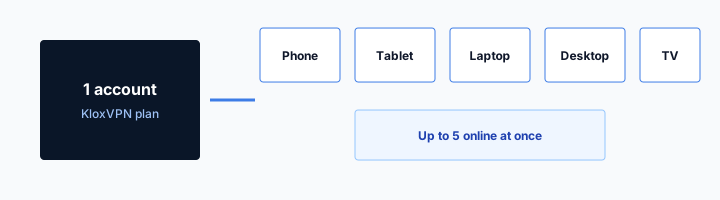
Installing the VPN app on each device and signing in with the same account is the standard approach. The VPN encrypts traffic from that device before it leaves your network. Each device counts as one connection toward your limit. A router running a VPN client counts as one connection but protects every device behind it — laptops, phones, smart TVs, IoT devices — without installing apps on each. That trade-off is powerful for households with many devices.
This guide explains how VPN device limits work, how to set up VPN on multiple devices, when router VPN makes sense versus per-device apps, how to manage connections when you hit the limit, and best practices for keeping your whole household protected. Whether you have a family of four with phones and laptops or a single user with a desktop, phone, and tablet, the principles apply: understand your limit, prioritize your most-used devices, and enable the kill switch everywhere.
Device limits are not arbitrary. VPN providers impose them to balance server capacity, abuse prevention, and fair use. A plan that allows 10 simultaneous connections can comfortably cover a typical family. One that allows 5 may require you to choose which devices stay connected or to use router VPN to extend coverage. The following sections cover setup, router versus device VPN, troubleshooting, and how to get the most from a single subscription.
Start with your most-used devices: phone, laptop, tablet. Add the router if you have smart TVs or consoles. Leave headroom for guests or temporary devices. A plan with 10 connections rarely feels constrained; one with 5 requires more planning. Consistency across devices matters: use the same account everywhere, enable auto-connect on mobile devices that move between networks, and verify the kill switch is on. A hybrid approach — router VPN for fixed devices, per-device apps for laptops and phones — often gives the best balance of coverage and flexibility.
Related reading: What Is a VPN and How Does It Work? and VPN on Router: Setup Tips. VPN on Android: Privacy and Permissions and VPN on iPhone: Quick Setup. What is a VPN? and Download KloxVPN.
Looking for a reliable VPN?
KloxVPN — from $2.83/month. Apps for every device.
Multi-Device VPN: Server Consistency
When using the same VPN account on multiple devices, each device can connect to a different server. That flexibility has trade-offs.
- 1Download the app from klox.app/download — not a random APK site.
- 2Sign in with the account you paid for.
- 3Press WireGuard. Wait for the connected state.
- 4If it fails, try OpenVPN. Still failing: note the network (hotel, campus, home) before you write support.
First successful connect
Same Server vs Different Servers
Using the same server on all devices simplifies troubleshooting and ensures consistent geo-access. Using different servers lets each device optimize for its use case — e.g., laptop for work region, phone for streaming region. Both approaches work; choose based on your needs.
Streaming and Multi-Device
Streaming services may limit simultaneous streams. A VPN does not change that. If Netflix allows 2 streams, you get 2 whether or not you use a VPN. The VPN protects your traffic; it does not bypass streaming service limits.
Session Management
Some VPN providers offer a dashboard to see and disconnect active sessions. Use it to free slots when a device you no longer use is still connected. Remote session management prevents the frustration of hitting the limit from an old tablet or laptop.
How VPN Device Limits Work
Every VPN provider defines a maximum number of simultaneous connections per account. When you connect a device, it consumes one slot. Disconnect that device, and the slot becomes available for another. The limit applies to active connections at any moment — not to the total number of devices you have installed the app on.
If your plan allows 6 connections and you have the VPN running on 6 devices, a 7th device cannot connect until one of the first 6 disconnects. Some providers disconnect the oldest session automatically; others show an error. Understanding this prevents frustration when a new device fails to connect.
| Fact | KloxVPN | Not on this page |
|---|---|---|
| Protocols | WireGuard, OpenVPN, OpenConnect, and Shadowsocks | A third invented protocol |
| Devices | Five simultaneous | Unlimited seats |
| Yearly | From $2.83/month | A fake city count |
| Refund | 7-day, first purchase | An On Demand toggle |
Typical Limits by Provider
Consumer VPNs typically offer 5–10 simultaneous connections. Some premium plans allow unlimited devices. Budget or free VPNs may cap at 1–3. Check your provider's documentation or account dashboard for your exact limit. KloxVPN and similar services often allow multiple devices on a single subscription — the exact number depends on your plan.
What Counts as a Connection
Each active VPN session counts: your laptop connected, your phone connected, your tablet connected. A device that has the app installed but is disconnected does not count. A device that connects automatically when it joins WiFi does count as soon as it connects. Background reconnection after sleep or network change also consumes a slot.
Sharing an Account
Many users share one VPN subscription with family members. Each person's devices consume slots from the same pool. A family of four with two devices each needs 8 slots. A plan with 10 connections covers that with room to spare. Coordinate with household members if you are close to the limit — someone may need to disconnect a rarely used device to free a slot.
Step-by-Step Setup on Multiple Devices
Setting up a VPN on each device follows the same pattern: download the app, sign in with your account, connect, and enable the kill switch. The process takes a few minutes per device. Consistency matters: use the same account on every device so all connections count toward one subscription.

HTTPS can hide a page body and still leave a destination visible. That is not a VPN.
— KloxVPN operator notes
Step 1: Install the App
Download the VPN app from your provider's website or the official app store. Avoid third-party download sites — they may distribute modified or malicious versions. Install on each device you want to protect: Windows, Mac, Android, iOS, Linux, or smart TV if the provider supports it.
Step 2: Sign In with One Account
Use the same email and password on every device. This ensures all connections draw from the same subscription and device limit. If you have multiple subscriptions (e.g., work and personal), keep them separate to avoid confusion.
Step 3: Connect and Enable Kill Switch
Connect to a server on each device. Enable the kill switch in settings — it blocks all traffic if the VPN drops, preventing leaks. Many apps offer auto-connect on startup or when joining untrusted networks. Enable it where available so you never forget to connect.
Step 4: Prioritize High-Risk Devices
If you are near your connection limit, prioritize devices that handle sensitive data or connect to untrusted networks most often. Your laptop used on public WiFi and travel is higher priority than a smart TV that only streams at home. Your phone on mobile data and cafe WiFi matters more than a tablet used occasionally.
Router VPN: One Connection, Many Devices
Configuring a VPN on your router protects every device behind it with a single connection slot. Your router establishes one VPN tunnel; all traffic from connected devices flows through it. No per-device apps needed. Smart TVs, gaming consoles, IoT devices, and guest devices all benefit without individual setup.
How Router VPN Counts
A router running a VPN client typically counts as one device toward your limit. That one connection covers your entire home network. If your plan allows 6 connections, you could use 5 for laptops and phones plus 1 for the router — and the router would protect every other device in the house.
Router VPN Trade-Offs
Router VPN has downsides. Your router must have enough CPU to handle encryption for all traffic — older or budget routers may slow down. Switching servers or troubleshooting requires accessing the router admin panel. You cannot easily use split tunneling or different servers per device. For set-and-forget protection of many devices, router VPN is powerful; for flexibility and per-device control, use the app on each device.
Compatible Routers
Routers that support OpenVPN or WireGuard can run a VPN client. Many Asus, Netgear, Linksys, and OpenWrt-based routers support it. Your VPN provider must offer router configs or manual setup instructions. Download the config from the provider's portal and import it into the router's VPN client.
Managing Connections When You Hit the Limit
When you reach your connection limit, new devices cannot connect. You have a few options: disconnect a device you are not using, upgrade to a plan with more connections, or use router VPN to free up slots.
Disconnect Unused Devices
Close the VPN app or disconnect on devices you are not actively using. A tablet in a drawer or a laptop that is off does not consume a slot once disconnected. Some apps allow you to view and manage active sessions from a dashboard — use that to see which devices are connected and disconnect the ones you do not need.
Use Router VPN for Low-Priority Devices
If you have many low-priority devices — smart TVs, streaming sticks, IoT — put them behind a router VPN. That frees app slots for your laptop, phone, and tablet. The router handles the TV and smart home; your personal devices use the app directly for flexibility.
Upgrade Your Plan
If you consistently need more connections than your plan allows, upgrade. Some providers offer family or multi-device plans with higher limits. The cost is usually modest compared to the value of protecting every device.
Multi-Device VPN and Work vs Personal
Separating work and personal VPN use avoids conflicts.
Corporate VPN vs Personal VPN
Work devices often require a corporate VPN for internal resources. You cannot run two VPNs simultaneously on one device. Use the corporate VPN for work; use your personal VPN on personal devices. If you use one device for both, switch between them — or use split tunneling if your personal VPN supports it, excluding work apps.
Device Ownership
On employer-owned devices, IT may restrict or monitor VPN use. Use only approved VPNs on work devices. On personal devices, you control the VPN. Keep work and personal traffic separate when possible.
Best Practices for Multi-Device VPN
A few habits maximize protection and avoid common mistakes when using a VPN across many devices.
Enable Kill Switch on Every Device
The kill switch blocks traffic if the VPN drops. Without it, a brief disconnect exposes your real IP and unencrypted data. Enable it on every device — laptop, phone, tablet. It is non-negotiable for privacy.
Use Auto-Connect Where Available
Auto-connect starts the VPN when the device joins a network or boots. That ensures you never forget — especially important on phones and laptops that move between home, office, and public WiFi. Set it to connect on untrusted networks or always, depending on your preference.
Keep Apps Updated
VPN apps receive security and performance updates. Enable automatic updates or check periodically. Outdated apps may have vulnerabilities or miss protocol improvements. Same for router firmware if you use router VPN.
Choose a Nearby Server
For the best speed, select a VPN server geographically close to you. Latency and throughput degrade with distance. If you need a specific region for streaming or access, use that server — but for general use, a local server is fastest.
Troubleshooting Multi-Device VPN
Common issues when using a VPN on multiple devices have straightforward solutions.
New Device Won't Connect
You have likely hit your connection limit. Disconnect a device you are not using, or check your provider's dashboard for active sessions. Some providers allow you to remotely disconnect sessions from a web portal.
Random Disconnections
If devices disconnect unexpectedly, another device may have taken the slot. Ensure only intended devices are connected. Check for duplicate logins — for example, if you reinstalled the app and now have two sessions from the same phone.
Router VPN Slowing the Network
Router VPN encrypts all traffic, which can strain the router's CPU. If your network slows significantly, consider a more powerful router or moving high-bandwidth devices (like your work laptop) to the app instead, and use router VPN only for low-bandwidth devices.
Key Takeaways
One VPN subscription can protect multiple devices. Check your plan's simultaneous connection limit — typically 5–10. Install the app on each device, sign in with the same account, and enable the kill switch. Router VPN counts as one connection and protects every device behind it. Prioritize high-risk devices if you are near the limit. Use auto-connect and keep apps updated. When you hit the limit, disconnect unused devices or use router VPN to free slots. One subscription can protect your whole household when configured correctly.
VPN and Smartwatch or Wearable Devices
Wearables that connect to the internet may or may not need VPN.
Standalone Cellular Watches
Smartwatches with cellular (e.g., Apple Watch, Samsung Galaxy Watch) connect directly to the carrier. They typically cannot run a VPN app. Their traffic is visible to the carrier. For maximum privacy on wearables, use a phone-tethered connection when possible — the phone's VPN can protect tethered traffic.
WiFi-Only Wearables
Wearables that connect via Bluetooth to your phone use the phone's connection. If your phone has VPN enabled, the wearable's traffic goes through it. No separate VPN needed on the wearable.
VPN and Gaming Consoles
Consoles often cannot run VPN apps. Router VPN or alternative methods apply.
Router VPN for Consoles
PlayStation, Xbox, and Nintendo Switch do not support VPN apps. The only way to protect console traffic is router VPN. Configure the VPN on your router; the console uses it automatically. All traffic from the console — game updates, multiplayer, streaming — goes through the VPN.
Latency Considerations
Gaming is latency-sensitive. A VPN adds 10–50 ms typically. For competitive gaming, use a server very close to you or consider not using VPN for that device. For casual gaming and streaming, router VPN is fine.
VPN Subscription and Account Management
Managing one subscription across many devices requires some planning.
Single Account, Multiple Devices
Use one email and password for all devices. This keeps billing simple and ensures all connections count toward one subscription. If you have separate work and personal VPNs, use different accounts — do not mix them on the same device.
Renewal and Billing
One subscription covers all devices within the connection limit. Renewal applies to the whole account. If you cancel, all devices lose access. No per-device billing for consumer VPNs.
How a tunnel applies to Using a VPN on Multiple Devices
Someone else owns the AP on Using a VPN on Multiple Devices networks. Guest SSIDs still NAT you. That is the whole physics lesson. TLS on klox.app is the website. The hop wrap is the app. Mixing those two explanations on Using a VPN on Multiple Devices Wi-Fi confuses tickets. Once Klox is up, inner DNS and inner sites go through the tunnel. The LAN still sees a blob to a node you chose. That is success, not a bug. The SSID label does not change the physics. Wrap after sign-in.
You do not need a special build because the SSID says Using a VPN on Multiple Devices. You need the same Klox app you would use at a cafe. Do not invent a city because the SSID mentioned a brand. Connect to a node. That is enough. When the AP filters UDP, OpenVPN often still lands. When both fail, the WAN is the problem, not a missing Using a VPN on Multiple Devices mode. Using a VPN on Multiple Devices Wi-Fi is shared. Finish the portal. Then WireGuard, OpenVPN, OpenConnect, and Shadowsocks.
Captive pages see the first request. Fire the tunnel too early and the sign-in never opens. Never fire it and the LAN keeps reading destinations. If both protocols fail, check whether you ever left the garden. WAN first. Then handshake. Then leak test. A QR by the kettle is still a captive garden. Finish it. Then Connect. Then test leaks if you care. Land, sign in, wrap. Repeat it until it is boring. Boring is the goal.
Order of operations
Using a VPN on Multiple Devices is a convenient name for a shared hop. It is not a VPN profile and not a city. Five seats means five devices total, not five devices per Using a VPN on Multiple Devices location. Share inside the cap. Keep the ritual small. Join Using a VPN on Multiple Devices Wi-Fi. Finish the page. Connect. Work. That is the complete consumer flow. Portal first. Handshake second. Leak test third. That is the whole checklist.
Shared Using a VPN on Multiple Devices Wi-Fi is not your network even when the SSID looks friendly. Assume NAT. Assume a garden. Then wrap. A minute of waiting after join is normal while DHCP and the garden load. Do not mash Connect ten times. Five devices means five. It does not mean a Using a VPN on Multiple Devices site license. Share the account inside that cap. Apps at /download. Plans at /pricing. Garden in the browser. Tunnel in the app.
The SSID string is marketing on the AP. The tunnel is WireGuard, OpenVPN, OpenConnect, and Shadowsocks. Keep those sentences in different rooms. Yearly $2.83/mo on yearly does not change on Using a VPN on Multiple Devices Wi-Fi. 7-day money-back on first purchase does not change either. I will not claim SOC 2 or a server map here. I will claim WireGuard, OpenVPN, OpenConnect, and Shadowsocks and the portal-then-Connect order. You are done when Connect is up and the portal is in the past. Not when you renamed a sysctl.
What not to invent
This slug is a habit page for Using a VPN on Multiple Devices networks, not a new SKU. Device limit stays five devices. Yearly stays $2.83/mo on yearly. Leak sites during the garden will look broken. They are supposed to see you. Test after Connect. WireGuard is fast when UDP lives. OpenVPN is the spare tire when a filter eats handshake packets. One swap. Then stop. If UDP dies on Using a VPN on Multiple Devices APs, one protocol swap. Then stop tinkering.
Join. Portal. Connect. That order is the Using a VPN on Multiple Devices ritual. Everything else is optional tinkering. Confirm you have a WAN before you blame the protocol. A captive garden with no accept button is not a WireGuard bug. Staff SSIDs still dump you through NAT. "Staff" is a word. Using a VPN on Multiple Devices is a word. Neither word is a private backbone. Treat Using a VPN on Multiple Devices like a hotel SSID even when the branding looks official.
Smart Connect is untrusted Wi-Fi. It is not On Demand. It is not a Using a VPN on Multiple Devices toggle. Do not paste sysctls because a Using a VPN on Multiple Devices AP was rude. Consumer move is protocol swap. Lab move is a different desk. Klox is five devices, yearly from $2.83/mo on yearly, 7-day money-back on first purchase. There is no Using a VPN on Multiple Devices SKU and no city count on this page. No Using a VPN on Multiple Devices mode. Same apps. Same five devices. Same yearly $2.83/mo on yearly.
Key Takeaways
A single VPN subscription can protect your laptop, phone, tablet, smart TV, and more. Device limits — typically 5–10 simultaneous connections — determine how many devices can be connected at once. Install the app on each device, sign in with the same account, and enable the kill switch everywhere.
Router VPN extends your coverage: one connection protects every device behind the router. That is ideal for smart TVs, gaming consoles, and IoT devices that do not need per-device flexibility. For laptops and phones that move between networks, the app gives you control over server choice and split tunneling.
When you hit the limit, disconnect unused devices or use router VPN to free slots. Keep apps updated, use auto-connect, and choose a nearby server for best speed. With those habits, one subscription protects your whole household.
Device limits are a practical constraint, not a barrier. Understanding how they work lets you allocate connections effectively and get full value from your VPN. Connect before you browse, enable the kill switch, and your traffic stays encrypted across every device. Review your connected devices monthly. Remove the VPN from devices you no longer use to avoid hitting the limit when you need a new connection. Gaming consoles and wearables require router VPN or phone tethering — plan your connection allocation accordingly. Use one account for all devices to simplify billing. When sharing with family, ensure everyone knows the connection limit so they can disconnect unused devices when needed.
Related Resources
Frequently Asked Questions
KloxVPN Team
Experts in VPN infrastructure, network security, and online privacy. The KloxVPN team has been building and operating VPN services since 2019, providing consumer and white-label VPN solutions to thousands of users worldwide.