
File sharing — via cloud services, peer-to-peer, or direct transfer — exposes your IP address to the recipient or the platform. The service knows where the file came from. On public WiFi, the transfer itself can be observed. A VPN encrypts the traffic and masks your IP. The recipient or platform sees the VPN server's IP, not yours.
Connect before starting the transfer. If you initiate the upload or download first, the service may capture your real IP before the VPN is active. Use a server with good bandwidth for large files — a nearby server with WireGuard typically adds minimal overhead.
VPN can also improve speed where ISPs throttle file transfers. Deep packet inspection identifies transfer protocols; encryption hides the traffic type. Some users see faster uploads and downloads with a VPN because the ISP can no longer throttle them. This guide covers why VPN helps with file sharing, best practices, and what to expect.
File sharing is a common activity — backing up photos to the cloud, sending large files to colleagues, or using P2P for legitimate downloads. Each method has different exposure. Cloud sync runs continuously in the background; P2P exposes your IP to every peer in the swarm. Direct transfers are one-off but still reveal your IP to the service. A VPN adds a consistent layer of protection across all these methods. The key is connecting before any transfer begins.
For P2P and torrenting, VPN is especially important. Copyright enforcement groups and others monitor swarms and log IP addresses. A VPN hides your real IP from every peer. Use a provider with a clear no-logs policy and P2P-friendly servers. The kill switch is essential — if the VPN drops mid-transfer, your real IP can be exposed to the swarm. Enable it before starting.
Related reading: VPN for Cloud Storage: Encrypt Your Sync and Backups and How to Use a VPN on Public WiFi Safely. Why WireGuard Is Faster Than OpenVPN and How to Use a VPN on Ferry Wi-Fi. What is a VPN? and Download KloxVPN.
Looking for a reliable VPN?
KloxVPN — from $2.83/month. Apps for every device.
Why VPN for File Sharing
File sharing exposes your IP and traffic. A VPN protects both. Whether you use cloud sync, P2P, or direct transfer, the same principles apply: encryption protects the path, and IP masking limits what the recipient or platform can infer about you.

- 1Skim the seating / order diagram.
- 2Do the numbered steps once on your real network.
- 3Use the FAQ if a sentence was too long.
- 4Follow one related article — not ten tabs.
How to read this page
Encrypt Transfers
File transfer traffic can be intercepted on public or untrusted networks. A VPN encrypts it. No one on the path can see the content or metadata. On cafe WiFi, hotel networks, or shared office connections, unencrypted file transfers are visible to anyone with packet capture tools. VPN encrypts the traffic before it leaves your device. The WiFi operator and other users see only encrypted streams to the VPN server. For sensitive documents, work files, or personal data, that protection matters.
Hide IP from Recipient or Service
Cloud services and P2P platforms see your IP when you upload or download. A VPN replaces it with the VPN server's IP. The recipient or platform cannot easily tie the transfer to your location. Cloud providers like Google Drive and Dropbox log the IP address of each upload. P2P swarms expose your IP to every peer. A VPN masks it. The service sees the VPN server's IP — which may be in a different country or city. That limits correlation with your real identity and location.
Bypass ISP Throttling
Some ISPs throttle file transfer protocols. VPN encryption hides the traffic type. The ISP cannot selectively slow it. Users sometimes see faster transfers with a VPN. ISPs use deep packet inspection to identify traffic — BitTorrent, FTP, or large HTTP uploads. When they detect file transfer protocols, they may throttle. VPN encryption makes the traffic look like generic encrypted data. The ISP cannot tell it is a file transfer. Users in regions with aggressive throttling often report faster speeds with VPN.
Best Practices
Connect first. Choose the right server. Use a no-logs VPN. These three habits cover most file-sharing scenarios. Consistency matters — make VPN part of your routine before any transfer.
| Fact | KloxVPN | Not on this page |
|---|---|---|
| Protocols | WireGuard, OpenVPN, OpenConnect, and Shadowsocks | A third invented protocol |
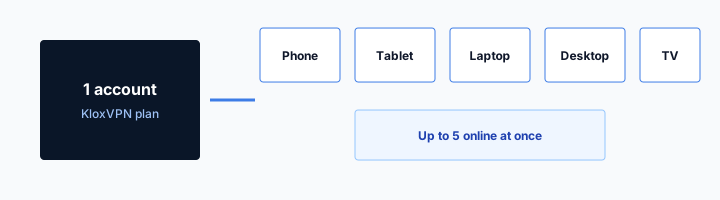
| Devices | Five simultaneous | Unlimited seats |
| Yearly | From $2.83/month | A fake city count |
| Refund | 7-day, first purchase | An On Demand toggle |
Connect Before Transfer
Establish the VPN connection before starting the upload or download. If the transfer begins first, the service may capture your real IP. Cloud sync apps often start automatically when you connect to WiFi. If the VPN is not active, the initial sync uses your real IP. Open the VPN app first, connect, then allow cloud sync or start your transfer. For P2P, the client connects to the swarm immediately — the VPN must be active before you launch it.
Server Selection
Use a server with good bandwidth. A nearby server minimizes latency and overhead. For large files, throughput matters more than geographic distance to the recipient. The file goes from your device to the VPN server, then to the destination. Your speed is limited by the slower of: your connection to the VPN, or the VPN's connection to the destination. A nearby server with high bandwidth usually performs best. Avoid overloaded or distant servers for large transfers.
No-Logs VPN
Your VPN provider can see that you are transferring data. A no-logs provider does not record what or where. Choose a provider with a clear no-logs policy. The VPN server decrypts your traffic to forward it — so the provider could theoretically log it. A no-logs policy means they choose not to. For file sharing, especially P2P, that matters. If the provider logs, a subpoena or breach could expose your activity. Look for audited no-logs policies.
Performance: Will VPN Slow Transfers?
Encryption adds overhead. With WireGuard and a good server, impact is often minimal. The overhead is usually acceptable — and in some cases, VPN improves speed.
HTTPS can hide a page body and still leave a destination visible. That is not a VPN.
— KloxVPN operator notes
Overhead
VPN adds a hop and encryption. Typical impact is 5–15% with WireGuard. For large files, that may mean a few extra minutes. For most users, it is acceptable. A 10 GB file that would take 20 minutes without VPN might take 22–23 minutes with it. The encryption and extra hop add latency and a small throughput cost. Modern protocols like WireGuard minimize this. For routine file sharing, the overhead is negligible.
When VPN Can Speed Up
If your ISP throttles file transfers, VPN can actually speed things up. Encryption prevents the ISP from identifying and throttling the traffic. Users who see 1–2 Mbps uploads without VPN and 10+ Mbps with VPN have experienced this. The VPN does not add bandwidth — it prevents the ISP from taking it away. If you suspect throttling, test with and without VPN. If speeds improve with VPN, the ISP was limiting you.
Legal Considerations
VPN is legal in most places. You are responsible for what you share. The VPN protects the connection; it does not change the legal status of the content.
VPN Legality
Using a VPN is legal in most countries. Some restrict it. Check local laws. In the US, UK, Canada, most of Europe, and many other regions, VPN use for personal privacy is legal. China, Russia, Iran, and some others restrict or ban unauthorized VPN use. When traveling, verify the rules. VPN protects your connection; it does not exempt you from local laws.
Content Responsibility
A VPN does not make illegal file sharing legal. You are responsible for copyright and local laws. The VPN protects the path; it does not change the legality of the content. Sharing copyrighted material without permission is illegal in most jurisdictions, with or without a VPN. The VPN hides your IP from the swarm or service; it does not provide legal protection. Use VPN for privacy, not for illegal activity.
File Sharing Methods and VPN
Different sharing methods have different exposure. VPN helps with all of them. Each method has specific considerations.
Cloud Storage and Sync
Services like Google Drive, Dropbox, and OneDrive sync files over the internet. Your IP is visible to the provider when you upload or download. A VPN encrypts the traffic and masks your IP. Connect before syncing. Large initial syncs may take longer with VPN overhead; ongoing syncs are usually fine. Cloud sync runs in the background — ensure the VPN is connected before the app starts. Some sync apps launch at login; configure the VPN to auto-connect on startup if you use cloud sync heavily.
Peer-to-Peer (P2P) and Torrents
P2P exposes your IP to every peer in the swarm. Copyright enforcement groups and others can see it. A VPN is essential for P2P — it hides your IP from peers. Use a VPN that allows P2P and has a kill switch. Connect before starting the client. Some VPNs restrict or block P2P on certain servers; check the provider's policy. The kill switch is critical — if the VPN drops, your real IP is exposed to the swarm immediately. Enable it and test it before torrenting.
Direct Transfer and WeTransfer
Direct transfer services see your IP when you upload. A VPN masks it. The recipient gets the file; the service sees the VPN server's IP. For one-off large files, connect before uploading. WeTransfer, SendAnywhere, and similar services work over VPN. The upload may take slightly longer due to encryption overhead, but the process is the same. The recipient does not need a VPN — they receive the file normally.
Encrypted Messaging File Sends
Apps like Signal and WhatsApp encrypt files in transit. The app's servers may still see metadata. A VPN adds a layer — it encrypts the path to the app's servers and hides your IP from the network. Connect before sending. The app encrypts the file; the VPN encrypts the path. On public WiFi, that double layer protects against local interception. The messaging service still receives the file, but your local network cannot see the traffic.
Kill Switch and File Sharing
A kill switch blocks traffic when the VPN drops. For file sharing, that matters. Without it, a dropped VPN exposes your real IP mid-transfer.
Why Kill Switch Matters
If the VPN disconnects during a large upload or download, your real IP can be exposed. P2P is especially risky — peers see your IP the moment the VPN drops. Enable the kill switch before any file sharing session. The kill switch blocks all traffic when the VPN connection fails. That stops the transfer — but it also prevents your real IP from leaking. For P2P, that is critical. Copyright enforcement and others monitor swarms; a brief exposure can be logged. The kill switch ensures no traffic flows without VPN protection.
Interrupted Transfers
When the kill switch engages, the transfer stops. That is correct — it prevents a leak. Reconnect the VPN and resume. Some apps support resumable transfers; cloud sync will retry automatically. For direct uploads, you may need to restart. The inconvenience is minor compared to the risk of exposure. Treat an interrupted transfer as a signal to check your VPN connection before continuing.
Choosing a VPN for File Sharing
Not all VPNs are equally suited for file sharing. A few features matter more than others.
P2P Support
Some VPNs block or restrict P2P on certain servers. For torrenting, choose a provider that explicitly allows P2P and designates P2P-friendly servers. Avoid providers that block P2P entirely. The restriction is usually in the terms of service or server list.
Bandwidth and Speed
File sharing can use significant bandwidth. Choose a provider with high-capacity servers and no throttling. WireGuard protocol helps — it adds minimal overhead. Test speed before committing to large transfers. A VPN that maxes out at 10 Mbps will slow a 100 GB upload significantly.
Kill Switch Quality
The kill switch must work reliably. Some VPNs have kill switches that fail to block all traffic when the VPN drops. Test it: connect the VPN, start a transfer, then disconnect the VPN. The transfer should stop immediately. If traffic continues, the kill switch is inadequate.
Large File Transfers: Best Practices
Transferring very large files (50 GB or more) has specific considerations. Plan for time and stability.
Stable Connection
Large transfers can take hours. Ensure your connection is stable. A dropped VPN or network interruption will stop the transfer. For cloud sync, the app will retry. For direct uploads, you may need to restart. Use a wired connection when possible — WiFi can drop. Avoid transferring during known network instability.
Resumable Transfers
Some services support resumable uploads and downloads. If the transfer stops, you can resume from where it left off. Cloud sync (Dropbox, Google Drive) typically supports this. Direct transfer services vary. Check before starting a large upload. Resumable transfers reduce frustration when the VPN or network drops briefly.
Overnight Transfers
For very large files, consider running the transfer overnight. Ensure the VPN is set to stay connected (disable sleep mode if needed). Some devices sleep and disconnect the VPN. Configure the system to stay awake during the transfer, or use a device that will not sleep. The kill switch should remain enabled — if the VPN drops, the transfer stops rather than leaking.
How a tunnel applies to VPN for Secure File Sharing
I treat VPN for Secure File Sharing Wi-Fi like any hotel or cafe: land, sign in, then wrap. Skip a step and the garden loops or destinations stay visible. Shared kitchens and coworking APs still NAT you. VPN for Secure File Sharing is just the label on this URL. Once Klox is up, inner DNS and inner sites go through the tunnel. The LAN still sees a blob to a node you chose. That is success, not a bug. The SSID label does not change the physics. Wrap after sign-in.
VPN for Secure File Sharing Wi-Fi is still a LAN you do not run. {place} is a location, not a protocol. If the SSID looks like staff Wi-Fi, still assume a portal. Fancy names do not grant a private backbone. Klox is five devices, yearly from $2.83/mo on yearly, 7-day money-back on first purchase. There is no VPN for Secure File Sharing SKU and no city count on this page. If UDP dies on VPN for Secure File Sharing APs, one protocol swap. Then stop tinkering.
You do not need a special build because the SSID says VPN for Secure File Sharing. You need the same Klox app you would use at a cafe. Yearly $2.83/mo on yearly does not change on VPN for Secure File Sharing Wi-Fi. 7-day money-back on first purchase does not change either. WireGuard is fast when UDP lives. OpenVPN is the spare tire when a filter eats handshake packets. One swap. Then stop. Land, sign in, wrap. Repeat it until it is boring. Boring is the goal.
The hop wrap here
Airport, hotel, campus, VPN for Secure File Sharing: the label changes. The hop does not. Untrusted LAN, then wrap. Smart Connect belongs on untrusted Wi-Fi. It is not a per-SSID profile named VPN for Secure File Sharing. A QR by the kettle is still a captive garden. Finish it. Then Connect. Then test leaks if you care. Send this slug when someone asks for a special VPN for Secure File Sharing profile. There is not one.
Shared VPN for Secure File Sharing Wi-Fi is not your network even when the SSID looks friendly. Assume NAT. Assume a garden. Then wrap. Leak sites during the garden will look broken. They are supposed to see you. Test after Connect. HTTPS on the website is not a hop wrap. RFC 8446 is TLS. Different job from Connect on VPN for Secure File Sharing Wi-Fi. VPN for Secure File Sharing Wi-Fi is shared. Finish the portal. Then WireGuard, OpenVPN, OpenConnect, and Shadowsocks.
If you came here looking for a VPN for Secure File Sharing mode in Settings: there is not one. Same apps. Same WireGuard, OpenVPN, OpenConnect, and Shadowsocks. Five seats means five devices total, not five devices per VPN for Secure File Sharing location. Share inside the cap. Cookies: /cookie. That is this website. It is not the tunnel and not the portal. Treat VPN for Secure File Sharing like a hotel SSID even when the branding looks official.
When to stop tinkering
The front desk can print a QR. The kettle can sit next to a portal. Neither object wraps a hop. VPN for Secure File Sharing Wi-Fi still needs Connect after sign-in. Open a browser first. If the garden needs a click, give it the click. Then open Klox. That order fixes most VPN for Secure File Sharing loops. Keep the ritual small. Join VPN for Secure File Sharing Wi-Fi. Finish the page. Connect. Work. That is the complete consumer flow. Portal first. Handshake second. Leak test third. That is the whole checklist.
Join. Portal. Connect. That order is the VPN for Secure File Sharing ritual. Everything else is optional tinkering. If both protocols fail, check whether you ever left the garden. WAN first. Then handshake. Then leak test. [Captive portal]({portal}) is the garden. VPN is the truck after. Mix the order and you get a loop or a leak, not a new feature. No VPN for Secure File Sharing mode. Same apps. Same five devices. Same yearly $2.83/mo on yearly.
Captive pages see the first request. Fire the tunnel too early and the sign-in never opens. Never fire it and the LAN keeps reading destinations. White-label partners still tell travelers the same habit. Portal, then the branded app. No VPN for Secure File Sharing SKU. If WireGuard hangs for a minute on VPN for Secure File Sharing Wi-Fi, wait out the portal, confirm you have a WAN, then try OpenVPN once. Apps at /download. Plans at /pricing. Garden in the browser. Tunnel in the app.
Key Takeaways
VPN makes file sharing more private. It encrypts transfers and masks your IP from the recipient or platform. Connect before starting the transfer. Use a server with good bandwidth. With WireGuard, the performance impact is often minimal — and VPN can improve speed where ISPs throttle.
Choose a no-logs VPN. Your provider can see that you are transferring data; a no-logs policy means they do not record what or where. For secure file sharing, VPN is a simple and effective layer. Enable the kill switch for P2P and large transfers. Different sharing methods — cloud, P2P, direct — all benefit from VPN protection.
For P2P users, VPN is non-negotiable. The swarm exposes your IP to everyone. A VPN hides it. Use a provider that allows P2P, has a reliable kill switch, and maintains a no-logs policy. For cloud sync and direct transfers, VPN adds privacy from your network and the service. The habit is simple: connect VPN first, then share.
Troubleshooting file sharing over VPN is usually straightforward. If transfers are slow, try a different server or protocol. WireGuard typically performs best. If a service blocks your VPN IP, try another server in the same region. Some services flag known VPN IP ranges; a less-used server may work. For cloud sync, ensure the VPN is connected before the sync app starts. Configure auto-connect if you use cloud sync at login. The goal is to make VPN the default state before any transfer begins.
Security and privacy go hand in hand with file sharing. Sensitive documents, work files, and personal data deserve protection. A VPN encrypts the path from your device to the VPN server. Combine it with strong passwords, two-factor authentication on cloud accounts, and careful sharing permissions. VPN protects the connection; you protect the content. For P2P, the kill switch is non-negotiable. For all methods, connect first, then share. Choose a provider that allows P2P if you torrent, offers a reliable kill switch, and maintains a no-logs policy. The combination of encryption, IP masking, and no logging gives you strong protection for any file-sharing scenario. Test the kill switch before relying on it — connect the VPN, start a transfer, then disconnect. The transfer should stop immediately. If it continues, the kill switch is not working and you need a different VPN.
Related Resources
Frequently Asked Questions
KloxVPN Team
Experts in VPN infrastructure, network security, and online privacy. The KloxVPN team has been building and operating VPN services since 2019, providing consumer and white-label VPN solutions to thousands of users worldwide.