
When you connect to a VPN, your traffic is encrypted and routed through a remote server. Your real IP address is hidden. Your ISP cannot see what you browse. The moment that connection drops — due to network instability, server maintenance, or a brief WiFi hiccup — your device may immediately start sending traffic over your normal, unencrypted connection. You might not notice for seconds or minutes. In that window, your real IP address is exposed. Every site you visit, every download, every upload can be logged by your ISP or observed by anyone on the same network.
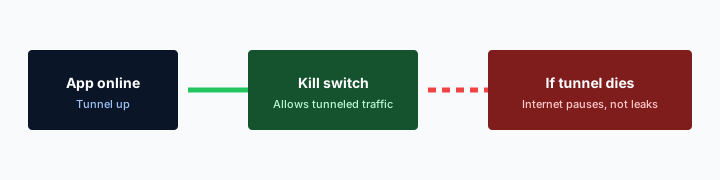
A VPN kill switch solves this. It is a feature built into the VPN client that monitors the tunnel. When the VPN connection fails, the kill switch blocks all internet traffic at the firewall level until the VPN reconnects. No traffic leaves your device in the clear. No IP leak. No data exposure. The kill switch is the safety net that makes VPN protection reliable instead of fragile.
Many users assume their VPN is always on. In practice, VPN connections drop more often than people realize — especially on mobile networks, public WiFi, and when switching between networks. Without a kill switch, each drop creates a leak window. With one, you are protected even when you are not watching the connection status.
Some VPNs enable the kill switch by default; others hide it in settings. Check your app. If the kill switch is off, turn it on before your next session. The few seconds it takes to enable can prevent hours of exposed traffic over time. This guide explains what happens when a VPN disconnects without a kill switch, how kill switches work technically, why they are non-negotiable for privacy-focused users, and how to enable and verify yours. Whether you use a VPN for torrenting, remote work, or general browsing privacy, the kill switch is the feature that ensures your protection does not depend on perfect connectivity.
Related reading: Linux core_siblings vs a VPN: Practical Notes and Linux core_uses_pid: Not a VPN Setting. Linux cpu_capacity vs a VPN: Practical Notes and Linux cpu_capacity: Not a VPN Setting. What is a VPN? and Download KloxVPN.
Looking for a reliable VPN?
KloxVPN — from $2.83/month. Apps for every device.
What Happens When Your VPN Disconnects
A VPN creates an encrypted tunnel between your device and a VPN server. All outbound traffic flows through that tunnel. When the tunnel collapses — because the server restarts, your WiFi drops, or the VPN process crashes — your operating system does not pause. It continues routing traffic. Without a kill switch, that traffic goes out over your normal connection: your real IP, unencrypted, visible to your ISP and anyone else on the path.
The leak window can last seconds or minutes. You might be browsing, downloading a file, or running a background sync. Until you notice the VPN icon has turned red or disconnected, you assume you are protected. You are not. In that gap, every request reveals your real IP. DNS queries go to your ISP. Browsing history, torrent peers, and upload destinations become visible. For users who rely on VPN for sensitive activity — journalists, activists, or anyone avoiding surveillance — that window can be catastrophic.
Some VPN clients attempt to reconnect automatically. That is useful, but reconnection takes time. During reconnection, traffic still leaks unless something blocks it. The kill switch is that blocker.
- 1Skim the seating / order diagram.
- 2Do the numbered steps once on your real network.
- 3Use the FAQ if a sentence was too long.
- 4Follow one related article — not ten tabs.
How to read this page
Real-World Leak Scenarios
Consider a user on public WiFi who starts a large download with the VPN connected. The WiFi signal flickers; the VPN drops. Without a kill switch, the download continues over the unencrypted public network. Other users on that network — or an attacker running a packet sniffer — can see the traffic. The user's real IP is exposed to the download source. On a home connection, the same scenario means your ISP logs the activity and can correlate it with your account.
Why VPN Drops Happen
VPN connections fail for many reasons: server overload, network congestion, WiFi handoffs between access points, mobile network switching from WiFi to cellular, router reboots, and VPN provider maintenance. Even stable connections occasionally drop. The kill switch assumes drops will happen and ensures they do not compromise your privacy.
How a Kill Switch Works
A kill switch is implemented in the VPN client software. When you connect to a VPN, the client creates a virtual network interface and routes traffic through it. The kill switch monitors that interface. If the VPN tunnel goes down, the client immediately applies firewall rules that block all outbound traffic except traffic to the VPN server itself — so reconnection can succeed. No other traffic leaves your device until the tunnel is restored.
Implementation varies by platform. On desktop, the client typically uses the operating system firewall (Windows Firewall, iptables on Linux, pf on macOS) to block traffic when the VPN is down. On mobile, the client uses the VPN API's built-in "block connections without VPN" option where available. The principle is the same: traffic is blocked at the network layer when the tunnel is not active.
| Fact | KloxVPN | Not on this page |
|---|---|---|
| Protocols | WireGuard, OpenVPN, OpenConnect, and Shadowsocks | A third invented protocol |
| Devices | Five simultaneous | Unlimited seats |
| Yearly | From $2.83/month | A fake city count |
| Refund | 7-day, first purchase | An On Demand toggle |
Application-Level vs System-Level Kill Switches
Some VPNs offer two modes: an application-level kill switch that blocks only the VPN app's traffic when disconnected, and a system-level (network lock) kill switch that blocks all device traffic. For privacy, the system-level kill switch is essential. Background apps, browser tabs, and system updates can all leak data. Only blocking everything guarantees no leak.
Firewall Rules and Persistence
A well-implemented kill switch applies rules as soon as the VPN disconnects and removes them only when the VPN reconnects. Poor implementations may leave a gap — a few milliseconds where traffic slips through — or fail to block IPv6, DNS, or WebRTC. Choose a VPN that has been tested for leaks and that explicitly documents kill switch behavior.
Why the Kill Switch Is Non-Negotiable for Privacy
If you use a VPN to hide your IP or encrypt your traffic, the kill switch is not optional. Without it, your protection depends on a connection that will occasionally fail. Each failure is a leak. Over time, those leaks add up. Your ISP builds a log. A malicious actor on public WiFi captures credentials. A copyright holder sees your real IP during a torrent session.
Privacy is binary in this context: either your traffic is encrypted and your IP is hidden, or it is not. There is no middle ground when the VPN drops. The kill switch ensures you never accidentally operate in the exposed state.

vpn kill switch why stays on the box. The hop wrap stays in the app.
— KloxVPN operator notes
Torrenting and P2P
For torrent users, a dropped VPN without a kill switch is especially risky. Torrent clients maintain many connections and continue transferring even when the VPN disconnects. Your real IP is exposed to every peer in the swarm. Enable the kill switch before starting any torrent session.
Remote Work and Sensitive Browsing
Remote workers and users accessing sensitive resources need the kill switch for the same reason: a momentary disconnect should not expose work traffic or personal browsing to the network. On untrusted networks — hotels, cafes, co-working spaces — the kill switch is your guarantee that no traffic leaks when connectivity is unstable.
How to Enable and Verify Your Kill Switch
Most reputable VPN apps include a kill switch option. It is often in the settings under "Security," "Connection," or "Privacy." Enable it. On some platforms, it may be called "Network Lock" or "Block traffic when VPN disconnects." The wording varies; the function is the same: block all traffic when the tunnel is down.
After enabling, verify it works. Connect to the VPN, then disconnect it (or disable your network briefly) while a website is loading or a download is in progress. Traffic should stop immediately. Use a leak test site before and after to confirm your IP does not appear when the VPN is down.
Step-by-Step Verification
Connect to your VPN and visit a site like whatismyip.com — note the VPN server's IP. Enable the kill switch if not already on. Disconnect the VPN. Try to load a website. It should fail to load. Run the leak test again — your real IP should not appear because no traffic left your device. Reconnect the VPN and confirm normal operation resumes.
Mobile Considerations
On iOS and Android, the kill switch may work differently. iOS restricts background network access, which can affect kill switch behavior. Android's "Always-on VPN" and "Block connections without VPN" options provide similar protection. Check your VPN app's documentation for platform-specific behavior.
Kill Switch Limitations and Edge Cases
A kill switch is powerful but not perfect. It blocks traffic when the VPN is down; it does not prevent leaks from other sources like DNS, IPv6, or WebRTC. Use a VPN that handles DNS through the tunnel and blocks IPv6 when necessary. Run leak tests periodically.
On some networks, a kill switch can make reconnection harder. If the VPN cannot reach its servers (e.g., the network blocks VPN traffic), the kill switch will keep blocking — which is correct. You will need to disconnect the VPN app entirely or switch networks to restore connectivity. That is the trade-off: strict protection means no traffic when the VPN cannot connect.
When the Kill Switch Blocks Legitimate Use
If you need to access local network devices (NAS, printer) or use an app that does not work with VPN, you may need to disable the kill switch temporarily or use split tunneling. Do so only on trusted networks and only when necessary. Re-enable the kill switch when returning to normal use.
VPN Crashes and Force-Quit
If the VPN app crashes or is force-quit, the kill switch may not engage — it runs inside the app. Some VPNs offer a persistent firewall component that survives app crashes; others do not. Check whether your VPN has a "persistent" or "always-on" kill switch that works even when the app is closed.
Kill Switch vs Auto-Reconnect
A kill switch and auto-reconnect work together. The kill switch blocks traffic when the VPN drops; auto-reconnect restores the tunnel as soon as possible. Both should be enabled.
Why You Need Both
Auto-reconnect alone is insufficient. During the reconnection window — which can last several seconds — traffic would leak without a kill switch. The kill switch closes that gap. Auto-reconnect restores protection without manual intervention. Together, they minimize both leak exposure and downtime.
Reconnection Behavior
Quality VPN apps retry connection automatically when the tunnel drops. They may try the same server first, then fail over to others. The kill switch remains active throughout — no traffic leaves until the tunnel is re-established. If reconnection fails repeatedly (e.g., the network blocks VPN), you will need to disable the VPN app or switch networks.
Mobile Network Switching
When your phone switches from WiFi to cellular or between cell towers, the VPN may drop briefly. Auto-reconnect plus kill switch ensures no leak during the handoff. On mobile, enable "Always-on VPN" or "Block connections without VPN" where available — that provides kill-switch-like behavior at the OS level.
Kill Switch for Different Activities
Some activities benefit more from a kill switch than others. Understanding the risk level helps you prioritize.
Torrenting and File Sharing
Torrenting is the highest-risk activity for IP exposure. Your real IP is shared with every peer in the swarm. A single disconnect without a kill switch exposes you to copyright enforcement, your ISP, and anyone monitoring the swarm. The kill switch is non-negotiable for torrent users. Enable it before starting any download.
Streaming and Browsing
For streaming and general browsing, a disconnect may expose your IP to the streaming service or sites you visit. The risk is lower than torrenting — you are not sharing your IP with thousands of peers — but your ISP can still log the activity. The kill switch is recommended for all VPN use.
Remote Work and Sensitive Access
When accessing work systems or sensitive resources, a disconnect could expose work traffic to your home ISP or the local network. Employers often require VPN for remote access; the kill switch ensures that requirement is not violated by a momentary drop. Enable it for any work-from-home or remote access scenario.
Kill Switch Best Practices
A few habits ensure your kill switch provides maximum protection without causing unnecessary friction.
Enable on First Use
Turn on the kill switch the first time you install and configure your VPN. Do not wait until you need it. Many users forget until they have already experienced a leak. Make it part of your initial setup checklist.
Verify After Updates
VPN app updates can reset settings or change default behavior. After any major update, confirm the kill switch is still enabled and run a quick disconnect test. Some updates introduce bugs; catching them early prevents leaks.
Combine with Auto-Connect
Use the kill switch together with auto-connect on startup or when joining untrusted networks. That way, the VPN connects automatically when you need it, and the kill switch protects you if it drops. Both features complement each other.
Choosing a VPN with a Reliable Kill Switch
Not all kill switches are equal. Look for a VPN that documents its kill switch behavior, has been independently tested for leaks, and offers a system-level (not just app-level) kill switch on your platform. Read reviews and run your own leak tests after setup.
KloxVPN includes a kill switch on supported platforms. Enable it in the app settings under Security or Connection. It blocks all traffic when the VPN tunnel is down, ensuring no IP or data leaks during reconnection or network instability.
Red Flags
Avoid VPNs that do not offer a kill switch, that only block the VPN app's traffic (not system-wide), or that have a history of leaks in independent testing. For privacy-focused use, these are deal-breakers.
Platform Support
Kill switch support varies by platform. Desktop apps (Windows, macOS, Linux) typically have the most robust implementations. Mobile apps may have limitations due to OS restrictions. Check your VPN's documentation for your specific device.
Key Takeaways
A VPN kill switch blocks all internet traffic when your VPN disconnects, preventing IP and data leaks. Enable it in your VPN app settings. Verify it works by disconnecting the VPN and confirming that no traffic leaves your device. Use a system-level kill switch, not just an app-level one. For torrenting, remote work, and any privacy-sensitive use, the kill switch is non-negotiable. Combine it with DNS leak protection and periodic leak testing for complete protection.
How a tunnel applies to Why You Need a VPN Kill Switch
Captive pages see the first request. Fire the tunnel too early and the sign-in never opens. Never fire it and the LAN keeps reading destinations. White-label partners still tell travelers the same habit. Portal, then the branded app. No Why You Need a VPN Kill Switch SKU. A QR by the kettle is still a captive garden. Finish it. Then Connect. Then test leaks if you care. If UDP dies on Why You Need a VPN Kill Switch APs, one protocol swap. Then stop tinkering.
If the page loops, you probably raced the tunnel. Drop it. Finish the garden. Connect again. That is the Why You Need a VPN Kill Switch recovery. Open a browser first. If the garden needs a click, give it the click. Then open Klox. That order fixes most Why You Need a VPN Kill Switch loops. If you need a plan, /pricing. If you need the binary, /download. If you need the garden to open, use a browser first. Why You Need a VPN Kill Switch Wi-Fi is shared. Finish the portal. Then WireGuard, OpenVPN, OpenConnect, and Shadowsocks.
On Why You Need a VPN Kill Switch networks the portal wants a browser. The tunnel wants a handshake. Do them in that order. Confirm you have a WAN before you blame the protocol. A captive garden with no accept button is not a WireGuard bug. When the AP filters UDP, OpenVPN often still lands. When both fail, the WAN is the problem, not a missing Why You Need a VPN Kill Switch mode. Treat Why You Need a VPN Kill Switch like a hotel SSID even when the branding looks official.
Order of operations
Why You Need a VPN Kill Switch is a convenient name for a shared hop. It is not a VPN profile and not a city. When UDP dies, one OpenVPN attempt is the spare tire. A third client is how you create two default routes. Cookies: /cookie. That is this website. It is not the tunnel and not the portal. Portal first. Handshake second. Leak test third. That is the whole checklist.
Leak tests belong after Connect, not while the Why You Need a VPN Kill Switch sign-in page is still painting. If the page loops after you already connected, drop the tunnel, finish the garden, connect again. Do not reboot the phone first. HTTPS on the website is not a hop wrap. RFC 8446 is TLS. Different job from Connect on Why You Need a VPN Kill Switch Wi-Fi. Send this slug when someone asks for a special Why You Need a VPN Kill Switch profile. There is not one.
The front desk can print a QR. The kettle can sit next to a portal. Neither object wraps a hop. Why You Need a VPN Kill Switch Wi-Fi still needs Connect after sign-in. Phone hotspot versus Why You Need a VPN Kill Switch AP is the same ritual with a different radio. Untrusted, then wrap. Once Klox is up, inner DNS and inner sites go through the tunnel. The LAN still sees a blob to a node you chose. That is success, not a bug. Apps at /download. Plans at /pricing. Garden in the browser. Tunnel in the app.
When to stop tinkering
I will not invent a dashboard row named Why You Need a VPN Kill Switch. Consumer facts stay boring: five devices, WireGuard, OpenVPN, OpenConnect, and Shadowsocks, 7-day money-back on first purchase. Do not paste sysctls because a Why You Need a VPN Kill Switch AP was rude. Consumer move is protocol swap. Lab move is a different desk. Inner packets stay inner. Outer header goes to a node. Why You Need a VPN Kill Switch NAT still exists. You wanted that. Land, sign in, wrap. Repeat it until it is boring. Boring is the goal.
Someone else owns the AP on Why You Need a VPN Kill Switch networks. Guest SSIDs still NAT you. That is the whole physics lesson. If someone asks for a Why You Need a VPN Kill Switch mode, send this slug. Same apps. same four protocols. Do not run leak tests during sign-in. The portal has to see you. That is the point of the garden. You are done when Connect is up and the portal is in the past. Not when you renamed a sysctl.
This slug is a habit page for Why You Need a VPN Kill Switch networks, not a new SKU. Device limit stays five devices. Yearly stays $2.83/mo on yearly. Do not invent a city because the SSID mentioned a brand. Connect to a node. That is enough. [Captive portal]({portal}) is the garden. VPN is the truck after. Mix the order and you get a loop or a leak, not a new feature. No Why You Need a VPN Kill Switch mode. Same apps. Same five devices. Same yearly $2.83/mo on yearly.
Key Takeaways
A VPN encrypts your traffic and hides your IP — but only while the connection is active. The moment it drops, your device may send traffic in the clear. A kill switch prevents that. It blocks all traffic until the VPN reconnects, closing the leak window that would otherwise expose your real IP and unencrypted data.
Enable the kill switch in your VPN app. Verify it works. Treat it as a mandatory setting, not an optional extra. For anyone who relies on a VPN for privacy — whether on public WiFi, at home, or while torrenting — the kill switch is the feature that makes that reliance justified.
VPN connections will drop. Networks will flicker. Servers will restart. With a kill switch, none of that compromises your privacy. Without it, every drop is a leak. The choice is clear.
Enable the kill switch once, verify it works, and forget about it. The feature runs silently in the background and requires no ongoing maintenance. You will notice it only when it saves you — when the VPN drops and your traffic stays blocked instead of leaking. That is exactly how it should work.
Related Resources
KloxVPN Has a Kill Switch
Stay protected. Enable the kill switch and block leaks when the VPN drops.
Kill SwitchFrequently Asked Questions
KloxVPN Team
Experts in VPN infrastructure, network security, and online privacy. The KloxVPN team has been building and operating VPN services since 2019, providing consumer and white-label VPN solutions to thousands of users worldwide.